Selecting an application to protect
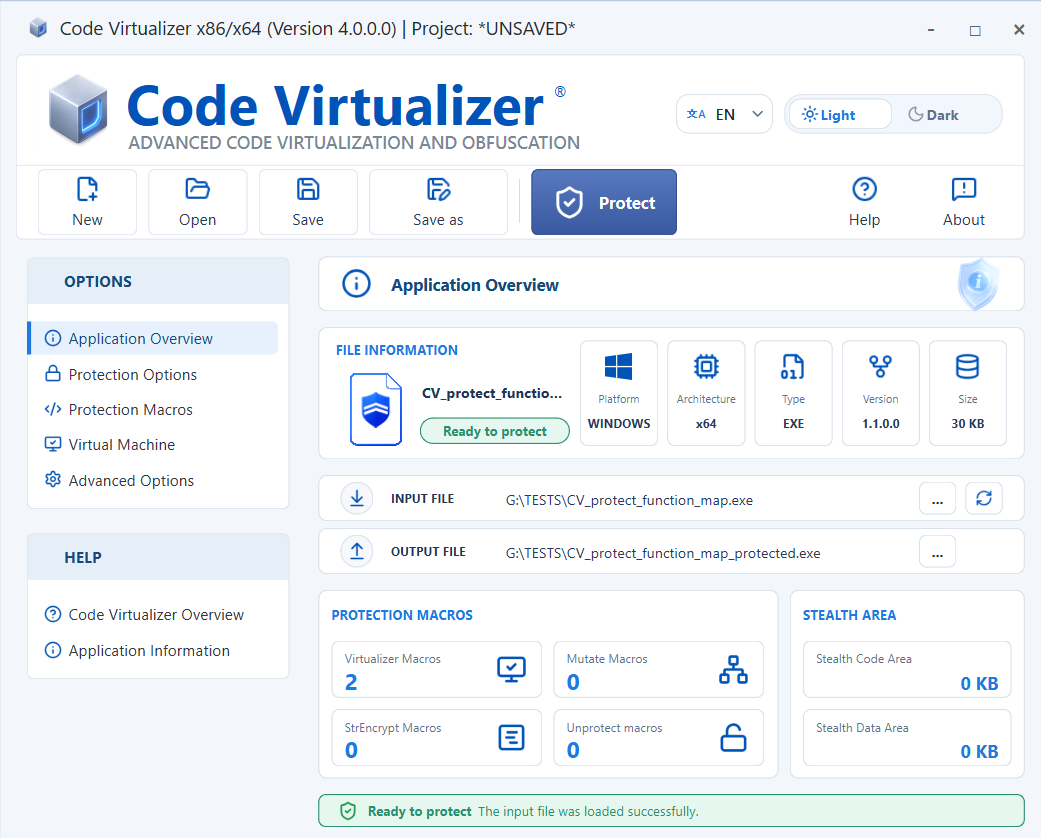
Select the Input File, browse for the application, or open a previously saved project. Use Output File to choose where Code Virtualizer will save the protected application.
After loading the application, the Application Overview shows its platform, architecture, file type, version, and size. It also summarizes the detected Virtualizer, Mutate, StrEncrypt, and Unprotect macros, together with the reserved Stealth Code and Stealth Data areas.
If Code Virtualizer does not detect the functions you want to protect, see Inserting Protection Macros to mark them.
After Code Virtualizer recognizes the marked functions, it selects the corresponding Virtual Machines in the Virtual Machine panel. If you used the legacy generic VIRTUALIZER markers, assign a specific Virtual Machine to process them.
Special Constants in Input/Output file names
Special constants let you use relative or variable input and output paths. This makes projects easier to move between computers or share with other developers. You can use these constants in any user-interface field that accepts a file path:
-
%INPUT_FILE_FOLDER%: Specifies the folder of the input file
-
%OUTPUT_FILE_FOLDER%: Specifies the folder of the output file
-
%PROJECT_FOLDER%: Specifies the folder of the current project file
-
%VIRTUALIZER_FOLDER%: Specifies the folder where Virtualizer.exe is located
-
%CURRENT_FOLDER%: Specifies the working directory from which Virtualizer.exe was launched
-
%environment_variable%: Expands any environment variable. For example: %temp%\MyApplication.exe
Example input path: %VIRTUALIZER_FOLDER%\MyProjects\MyApplication.exe